
Implementing a Contact Form in Astro using Netlify Functions and SendGrid
Guide on implementing a Netlify serverless function leveraging SendGrid in Astro to handle contact form submissions. This can be extended to any serverless function, form type, or email sending with SendGrid.

•
6 min read
Looking for a guide on setting up Netlify serverless functions in Astro? You’ve come to the right place. This guide will walk you through setting up a Netlify serverless function leveraging SendGrid to handle contact form submissions from your Astro website.
Services we are using
Any time you are setting up a serverless function, you need to decide what services you are going to use. For this guide, we are going to use:
- Netlify - for hosting our website and serverless functions.
- SendGrid - for sending emails from our serverless function. This allows 100 email sends / day for free.
- Astro - for building our website of course!
Creating your first Netlify function
Netlify uses a specific folder structure to identify where your serverless functions are located. You can read more about the folder structure required here.
Setup your folder structure
Create a folder netlify in your projects’ root directory. Then inside that folder create another folder called functions, and inside this is where our contact.js file will live. So the full path will be netlify/functions/contact.js.
INFO
You will call your netlify functions in your frontend code at the route /.netlify/functions/contact
Create the basic function code
Inside your contact.js file, add the following code:
const handler = async function (event) {
  // function code here

  // for now just reply success
  return {
    statusCode: 200,
    headers: {
      "Content-Type": "application/json",
    },
    body: JSON.stringify({
      msg: "Message sent successfully",
    }),
  };
};

export { handler };
Setup Astro for Netlify functions
At the time of writing this guide, the Astro documentation on Netlify isn’t clear on if you need to do anything special to use Netlify functions. I’ve learned that you do NOT need to Netlify adapter (assuming your site is static). If you need SSR or Hybrid rendering, then you will need to use the Netlify adapter.
Create basic form
In your Astro project, create a basic form in one of your Astro pages. There is no styling here to keep the code minimal for demonstration purposes.
<form id="contact" name="contact" method="GET">
  <input type="hidden" name="form-name" value="contact" />
  <label for="contact-fname">First Name</label>
  <input
    id="contact-fname"
    type="text"
    name="fname"
    placeholder="Your first name"
  />
  <label for="contact-lname">Last Name</label>
  <input
    id="contact-lname"
    type="text"
    name="lname"
    placeholder="Your last name"
  />
  <div>
    <label for="contact-email">*Email</label>
    <input
      id="contact-email"
      type="email"
      name="email"
      inputmode="email"
      placeholder="Your preferred contact email"
      required
    />
  </div>
  <div>
    <label for="contact-message">*Message</label>
    <textarea
      id="contact-message"
      name="message"
      rows="4"
      placeholder="Tell me about your project"
      required
    ></textarea>
  </div>
  <button type="submit">Send Message</button>
</form>
Add the form submission code
Currently our form does nothing on submission. You could just have the form itself initiate the POST request to the netlify function, but this way allows us to provide feedback to the user on success or fail of the contact form submission. Let’s attach some code to it to handle the form submission. In the same file that your form is located, at the following code at the bottom.
<script>
  const form = document.getElementById("contact");
  var xhr = new XMLHttpRequest();

  const handleFormSubmission = (event) => {
    // prevent page from reloading
    event.preventDefault();

    const data = event.target.elements;

    // put into JSON object
    const formData = {
      fname: data.fname.value,
      lname: data.lname.value,
      email: data.email.value,
      message: data.message.value,
    };

    // Set POST request method to our netlify function
    xhr.open("POST", ".netlify/functions/contact");

    // Set the request headers
    xhr.setRequestHeader("Content-Type", "application/json; charset=UTF-8");

    // Send the data as JSON to our netlify function
    xhr.send(JSON.stringify(formData));

    // Handle the response
    xhr.onload = function () {
      const response = JSON.parse(xhr.responseText);

      if (xhr.status === 200) {
        // The request was successful
        console.log("success");
      } else {
        // The request failed
        console.log("fail");
      }
    };
  };

  // add the submission event listener
  form.addEventListener("submit", handleFormSubmission, true);
</script>
The above code creates an AJAX request and sends our form data to our netlify function. It then handles the response from the netlify function and logs the response to the console. You can add your own logic here to display a success or fail message to the user.
Add SendGrid to Netlify function
You need to create a SendGrid account and create an API key. You can follow the SendGrid documentation to create this and authenticate your domain.
Setup .env file
Create a file .env at the root of your project, and put your SendGrid API key there. DO NOT COMMIT THIS FILE TO YOUR REPO. You can add it to your .gitignore file to ensure it is not committed.
SENDGRID_API_KEY=YOUR_API_KEY_HERE
You will also have to put your API key in Netlify under Site configuration -> Environment variables. This will allow Netlify to access your API key when it builds your site.
Install SendGrid package
Install the SendGrid package in your project.
npm install @sendgrid/mail
Update Netlify function
Update your netlify/functions/contact.js file to use the SendGrid package, and send a simple email based on what our form submits.
const sgMail = require("@sendgrid/mail");

const { SENDGRID_API_KEY } = process.env;

const handler = async function (event) {
  // get data from body
  const { fname, lname, email, message } = JSON.parse(event.body);

  // set API key
  client.setApiKey(SENDGRID_API_KEY);

  // setup data for email
  // NOTE: THIS IS NOT SECURE. YOU NEED TO SANITIZE THE INPUTS
  const data = {
    to: "test@example.com", // Change to your recipient (your email in this case)
    from: "test@example.com", // Change to your verified sender
    subject: `New message from ${fname} ${lname} (${email})`,
    html: `<p>${message}</p>`,
  };

  try {
    await sgMail.send(data);
    return {
      statusCode: 200,
      headers: {
        "Content-Type": "application/json",
      },
      body: JSON.stringify({
        msg: "Message sent successfully",
      }),
    };
  } catch (err) {
    return {
      statusCode: err.code,
      headers: {
        "Content-Type": "application/json",
      },
      body: JSON.stringify({ msg: err.message }),
    };
  }
};

export { handler };
DANGER
This code is not secure. You need to sanitize the inputs.
There you go! You now have a working contact form that sends an email to your inbox.
Starwind UI
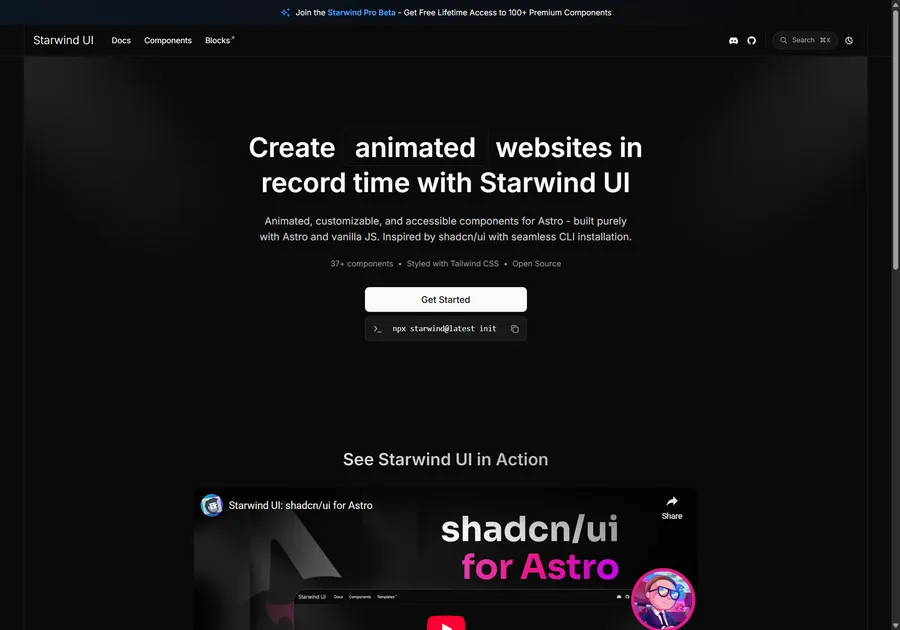
I've learned a lot developing with Astro. So I crafted 37+ animated and accessible components to help you get started with your next project. Inspired by shadcn/ui with seamless CLI installation. Free and open source.
Testing
We can test this using the Netlify CLI. Install it with npm install netlify-cli -g. Then run netlify dev to start a local server. You can then test your form by submitting it from the window it automatically opens (probably localhost:8888). You should see a success message in the console and receive an email.
Typescript support
To use typescript within your Netlify function, you need to install the @netlify/functions package.
npm install @netlify/functions
Then you need to update your netlify/functions/contact.js file to use typescript.
import { Handler, HandlerEvent } from "@netlify/functions";

const handler: Handler = async function (event: HandlerEvent) {
  // function code here
};

export { handler };
Great Success
You now have a working contact form that sends an email to your inbox. Great success. 🚀
Don't forget to follow me on Twitter for more Astro, web development, and web design tips!