
How to add GA4 and Google Tag Manager to your Astro Website
Guide on adding Google Tag Manager and Google Analytics 4 (GA4) to your Astro website.


•
6 min read
Late in switching over to GA4, or just looking for help in setting it up in the first place on your Astro website? Let’s go through how to set it up.
If you also need to implement a cookie consent banner, you can check out my cookie consent post.
Introduction
Google Analytics 4 (GA4) is Google’s replacement for Universal Analytics. Whether we wanted it or not, we’ve stepped into a war with the cabal on mars UA is being deprecated on July 1, 2023. At the time of this posting that’s just over a week away!
What is a Tag?
Tags are simply snippets of code or tracking pixels. They are used to collect data from your website and send it to the third-party tool. For example, Google Analytics uses a tag to collect data about your website visitors and send it to Google Analytics (that’s why you’re here).
Setup GA4 Property
- First you need to create your GA4 property. You can do this at analytics.google.com
- Follow the instructions until you you get to where you choose a platform. Select “web”
- Put in your website address and give it a name
- “Create Stream”
Now there will be a popup for installation instructions to add your Google tag manually (since this is for a custom site). If you use a tool like MonsterInsights, Shopify, or other, then the appropriate instructions for those should come up instead.
GA4 Implementation Options
You have two options to add GA4 to your website. You can either add the GA4 tag code to your website directly, or you can add the code for Google Tag Manager and setup Tag Manager to add GA4. Tag Manager allows you to manage ALL your tags in one place without you having to later update the code.
Tag Manager can add the code for other tags such as:
- Adwords Remarketing
- Adwords Conversion Tracking
- heatmap tracking code (like Hotjar)
- Facebook pixels
- Cookiebot and other GDPR data privacy scripts
I implement GA4 on my websites using Google Tag Manager, but you can make that decision yourself. Both implementations are below.
GA4 Tag Directly
At this point, you can copy the Google Tag code it shows to put in the <head> of your website. Specific to astro though, you need to alter this script slightly.
The script google gives you looks like the below, where G-XXXXXXXXXX needs to be replaced with your GA4 Measurement ID.
<!-- Google tag (gtag.js) -->
<script
  async
  src="https://www.googletagmanager.com/gtag/js?id=G-XXXXXXXXXX"
></script>
<script>
  window.dataLayer = window.dataLayer || [];
  function gtag() {
    dataLayer.push(arguments);
  }
  gtag("js", new Date());

  gtag("config", "G-XXXXXXXXXX");
</script>
The code to put in Astro for our <head> needs to have <script is:inline>. This makes it so astro puts the script into the webpage code as-is instead of optimizing it. See the astro docs for more details. The implementation will look like the below.
<!-- Google tag (gtag.js) -->
<script
  async
  src="https://www.googletagmanager.com/gtag/js?id=G-XXXXXXXXXX"
></script>
<script is:inline>
  window.dataLayer = window.dataLayer || [];
  function gtag() {
    dataLayer.push(arguments);
  }
  gtag("js", new Date());

  gtag("config", "G-XXXXXXXXXX");
</script>
GA4 Using Google Tag Manager
Go to tagmanager.google.com and, using the same google account, create a tag manager account.
It will then give you the code to setup tag manager. Just like the GA4 tag, we need the is:inline directive. For this you need both code in the head and body of the website. Note: you’ll need to replace “GTM-XXXXXXX” with your GTM container id.
<!-- This is in <head> -->
<!-- Google Tag Manager -->
<script is:inline>
  (function (w, d, s, l, i) {
    console.log("GTM");
    w[l] = w[l] || [];
    w[l].push({ "gtm.start": new Date().getTime(), event: "gtm.js" });
    var f = d.getElementsByTagName(s)[0],
      j = d.createElement(s),
      dl = l != "dataLayer" ? "&l=" + l : "";
    j.async = true;
    j.src = "https://www.googletagmanager.com/gtm.js?id=" + i + dl;
    f.parentNode.insertBefore(j, f);
  })(window, document, "script", "dataLayer", "GTM-XXXXXXX");
</script>
<!-- End Google Tag Manager -->
<!-- This is opening of <body> -->
<!-- Google Tag Manager (noscript) -->
<noscript>
  <iframe
    src="https://www.googletagmanager.com/ns.html?id=GTM-XXXXXXX"
    height="0"
    width="0"
    style="display:none;visibility:hidden"
  >
  </iframe>
</noscript>
<!-- End Google Tag Manager (noscript) -->
Data Layer with GTM
Google also recommends you setup the data layer within your code too. You can do this with the below code. The data layer is an object used by Google Tag Manager and gtag.js to pass information to tags. These could be events or variables, where triggers can be set up based on the values of variables. For further info, see Google’s docs. This code needs to be BEFORE the Google Tag Manager code.
<!-- in <head> before GTM code -->
<script is:inline>
  window.dataLayer = window.dataLayer || [];
  function gtag() {
    dataLayer.push(arguments);
  }
</script>
Configure GTM to Fire GA4 Tag
Now that you have GTM setup on your website, you need to tell setup GTM to fire the GA4 tag for you. This is done by creating a tag and a trigger. Starting in your Tag Manager workspace:
- click “Tags” in the left menu. Then click “New” to create a new tag
- Click “Tag Configuration” and select “Google Analytics: GA4 Configuration”
- Put in your measurement ID from Google Analytics
- Looks like “G-XXXXXXXXXX”
- Click “Triggering” and select “All Pages”
- Add an additional trigger for “Initialization - All Pages”
Starwind UI
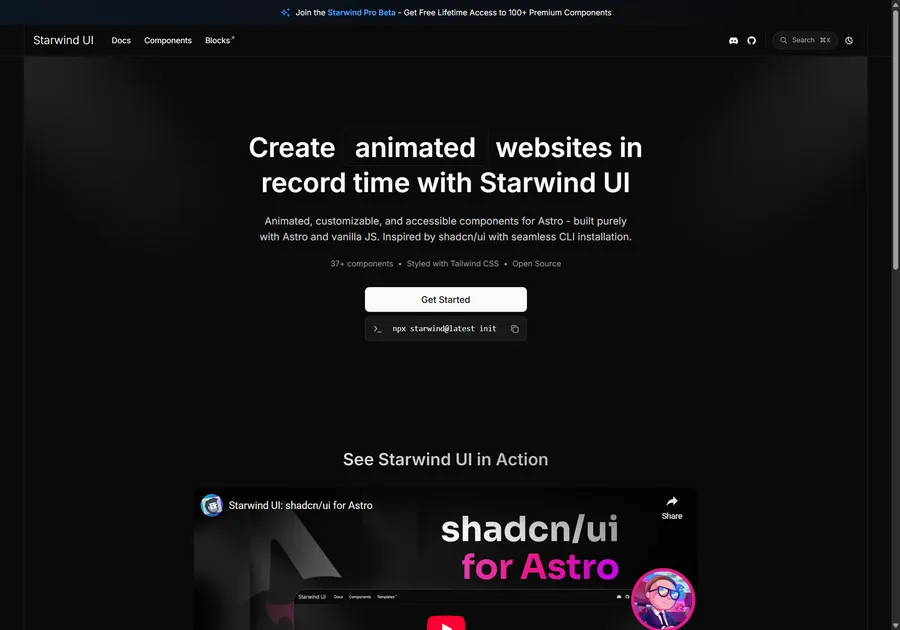
I've learned a lot developing with Astro. So I crafted 37+ animated and accessible components to help you get started with your next project. Inspired by shadcn/ui with seamless CLI installation. Free and open source.
Test Your GA4 Implementation
You can test your GA4 implementation at tagassistant.google.com. This will tell you if you have any errors in your implementation. Notes:
- Make sure your browser is not blocking cookies
- Make sure you are not using an ad blocker
What About Consent?
CAUTION
You need to make sure you are not tracking users without their consent. This is especially important if you are tracking users in the EU. You can use certain tools out there for this, or roll your own implementation. I have created my own basic implementation.
You can see my implementation in the cookie consent post.
Great Success
You now have GA4 and GTS setup on your astro website! Great success. 🚀
Don't forget to follow me on Twitter for more Astro, web development, and web design tips!