
Using AOS with View Transitions in Astro 3.0
Guide on how to use AOS in Astro with View Transitions. Enable the popular Animate On Scroll library in Astro 3.0 while also taking advantage of View Transitions.

•
4 min read
Struggling with using the popular Animate On Scroll library together with View Transitions in Astro 3.0? Same. But I figured it out and have now given you the guide on how to setup and use AOS in Astro with View Transitions.
Now you have no excuses. Go forth and animate all the things. 🚀
Requirements
Astro 3.0
Install or update Astro in your project to the latest version with npm install astro@latest.
AOS
Install AOS in your project with npm install aos.
AOS Setup
Create AOS Init Code
I like to have a separate file with my AOS initiation code, which I can import wherever I want to use it. Create a file called aos.js in your src directory somewhere (I use src/js/aos.js) and add the following code:
import AOS from "aos";

export function aosInit() {
  AOS.init();
}
You could add AOS config options to this init function. My website currently has the following initialization function:
import AOS from "aos";

export function aosInit() {
  AOS.init({ duration: 800, easing: "ease-out-cubic", once: true, offset: 50 });
}
You can look at the AOS documentation to determine what options you want to use.
Import AOS in Astro Layout File
Every page you plan to use AOS, you need to import and run the aosInit function. I like to do this in an Astro layout file that I use for every single page.
Import it and run it in a <script> tag at the bottom of the <body> tag. You’ll also need to import the AOS css file. Here’s an example of what this looks like in my src/layouts/BaseLayout.astro file:
---
import "aos/dist/aos.css"; // AOS styles
---

<head>
  <!-- head stuff -->
</head>
<body>
  <!-- animate on scroll script -->
  <script>
    import { aosInit } from "@js/aos";

    // runs on initial page load
    aosInit();
  </script>
</body>
TIP
The above import uses typescript path aliases. See my typescript path aliases blog post for details on how to set this up.
Using AOS On Components
Now that AOS is initialized, we can update any components / tags we want to animate with the data-aos attribute. For example, if you want to animate a <BlogPostCard /> component, you can add the data-aos attribute to it like so:
<BlogPostCard post={aBlogPost} data-aos="fade-up" />
Enable View Transitions
Now we will enable view transitions for smooth page transitions, and update our AOS code to work with this, as scripts are loaded differently.
Enable Basic View Transitions
We need to import and add the ViewTransision component to whatever files we want them in. For this we will use the same BaseLayout.astro file we used above. Add the following code to the top of the file:
---
import { ViewTransitions } from "astro:transitions";
import "aos/dist/aos.css"; // AOS styles
---

<head>
  <ViewTransitions />
  <!-- other head stuff -->
</head>
<body>
  <!-- animate on scroll script -->
  <script>
    import { aosInit } from "@js/aos";

    // runs on initial page load
    aosInit();
  </script>
</body>
If you save and run the code at this point, you will notice that AOS will work on initial page load, but not when you navigate to another page using View Transitions. This is because the script is not executed when you navigate to another page. We need to add an event listener to run the aosInit function when a View Transition occurs.
Starwind UI
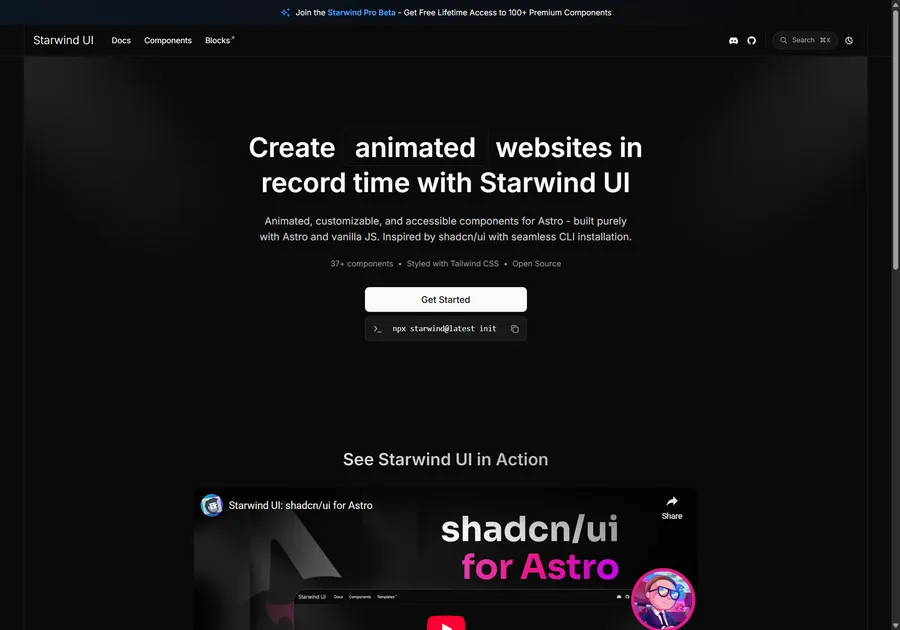
I've learned a lot developing with Astro. So I crafted 37+ animated and accessible components to help you get started with your next project. Inspired by shadcn/ui with seamless CLI installation. Free and open source.
Add Event Listener for View Transitions
Astro provides two events we can listen for related to view transitions. Those are astro:page-load and astro:after-swap. Here we will use astro:after-swap, which fires immediately after the new page replaces the old page. The below code shows how to do this:
---
import { ViewTransitions } from "astro:transitions";
import "aos/dist/aos.css"; // AOS styles
---

<head>
  <ViewTransitions />
  <!-- other head stuff -->
</head>
<body>
  <!-- animate on scroll script -->
  <script>
    import { aosInit } from "@js/aos";

    // runs on initial page load
    aosInit();

    // runs on view transitions navigation
    document.addEventListener("astro:after-swap", aosInit);
    // see here for details https://docs.astro.build/en/guides/view-transitions/#script-behavior-during-page-navigation
  </script>
</body>
Great Success
Now AOS runs on initial page load, and when you navigate to another page using View Transitions. Great success. 🚀
Don't forget to follow me on Twitter for more Astro, web development, and web design tips!